
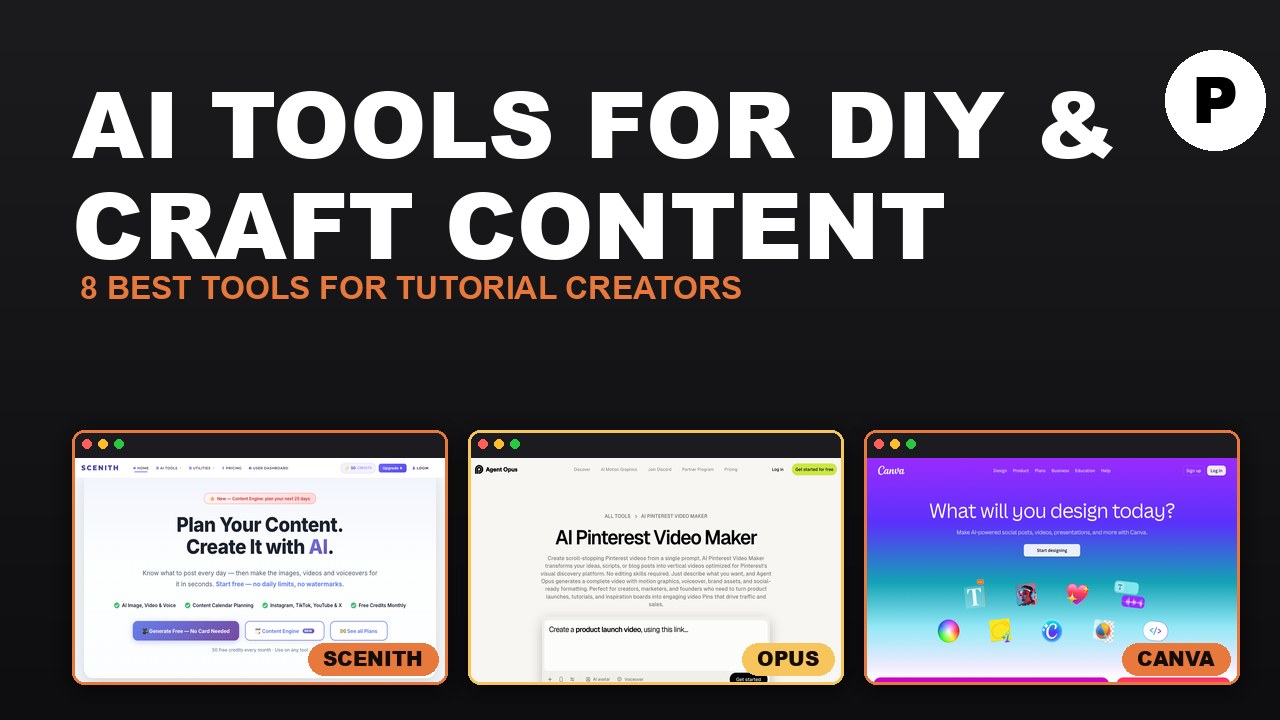
Craft and DIY content only works if the viewer can actually follow along. A recipe video, a knitting pattern, a woodworking build, all of it depends on pacing, clarity, and accurate visuals in a way that most other content categories don’t need to worry about as much. That makes tool choice more consequential here than in faster-paced formats, where a slightly generic clip or a rushed voiceover barely registers. Below are eight tools that each handle a specific piece of building instructional content someone can genuinely recreate at home.
Key takeaways
- Purpose-built tutorial generators can now produce a full instructional video from a written description, no filming or screen recording required.
- Pinterest still drives most craft and DIY discovery, so a tool tuned specifically to that platform’s format outperforms a generic short-form video maker.
- Pacing and narration matter more in craft tutorials than almost anywhere else, since a viewer is following along with their hands, not just watching.
- Some tools generate a complete video from scratch; others are built to support and polish a real filmed demonstration. The right pick depends on whether the creator wants to be on camera at all.
- Supporting assets, printable patterns, materials lists, and pin graphics often matter to a craft audience as much as the video itself.
1. Scenith

Scenith builds full instructional videos from nothing but a text description, and it’s explicitly designed around DIY guides, craft projects, software walkthroughs, and recipes rather than general marketing video.
What sets it apart is a prompting framework built specifically for tutorials: it asks for a difficulty level and an intended audience before generating anything, so the pacing and visual language get calibrated to an actual beginner instead of defaulting to a generic demo reel. Anyone who wants a finished tutorial without filming a demonstration or setting up screen recording gear gets that here.
2. Opus (AI Pinterest video maker)
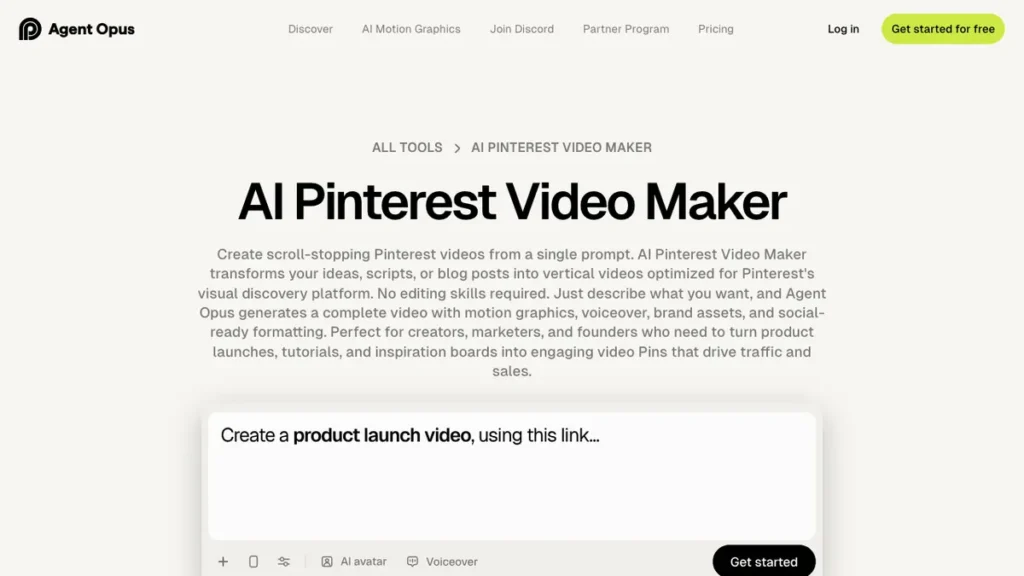
Opus takes a script, a blog post, or a rough idea and turns it into a vertical video built specifically for Pinterest, which is still where most craft and DIY content actually gets found.
That platform focus is the whole point. Pinterest’s slow-scroll, image-first browsing behaves nothing like the fast-scroll format that generic vertical reframe tools are typically tuned for, so a video optimized for TikTok or Reels doesn’t automatically translate. Creators whose traffic comes primarily from Pinterest rather than short-form social apps are the clear fit.
3. Flixier
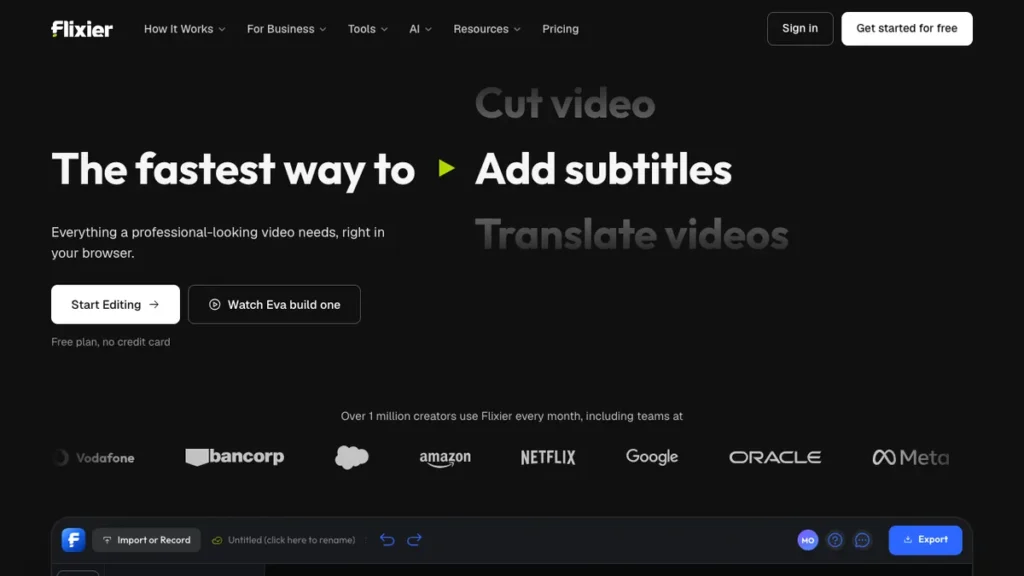
Flixier’s AI tutorial maker calls out DIY creators specifically among its intended users, and it lets someone record screen, microphone, and webcam at the same time for a genuinely hands-on demonstration.
It’s less an either-or tool and more a blend: an AI-generated structure paired with real footage, rather than forcing a choice between filming everything yourself or generating it all synthetically. That combination suits creators who want to show their actual process on camera but still want help with structure, pacing, and the final polish.
4. InVideo
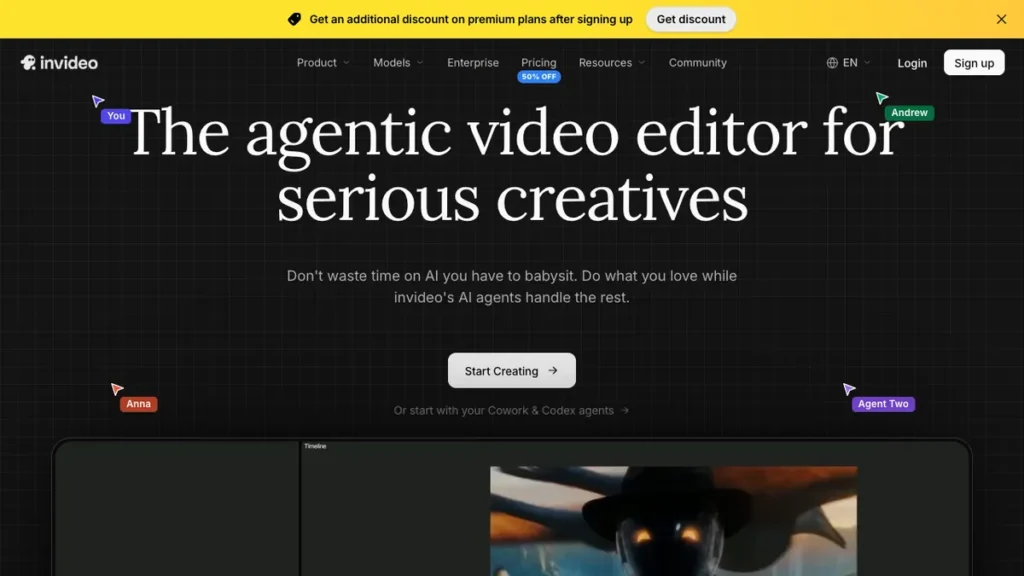
InVideo generates a complete tutorial from a single prompt, but it doesn’t stop there. A full editing interface lets a creator go back in afterward and swap individual clips, adjust timing, or fix a scene that doesn’t quite match.
That manual layer matters more for craft content than it might elsewhere. A generic AI-selected visual can easily miss the specific material or technique being demonstrated, so having the option to review and correct scene by scene before publishing is worth the extra few minutes.
5. Descript
Descript edits video and audio by editing text. Someone records a real demonstration, and instead of dragging clips along a timeline, they cut, rearrange, or clean up the narration simply by editing the transcript.
Screen and webcam recording are built into the same tool, which is convenient for tutorials that mix spoken instruction with a filmed process. It’s aimed at creators who already record their own content and want to polish narration quickly, without needing traditional timeline-editing skills to get there.
6. Canva
Canva’s video features get most of the attention, but Magic Design and Magic Write extend well past video into printables, pattern graphics, and Pinterest-optimized pin designs, all things craft and DIY brands need constantly.
The real value is not having to switch tools for each format. A tutorial thumbnail, a printable pattern sheet, and a matching Pinterest pin can all come out of one platform, which matters for creators managing visual assets alongside video rather than video alone.
7. CapCut
CapCut is still the default free editor for craft content headed to TikTok or Reels. Auto-captions, ready-made templates, and mobile-first editing make it well suited to fast, vertical, attention-grabbing cuts.
The auto-captioning built into CapCut works on the same principle as dedicated caption generator tools for Reels and Shorts: readable on-screen text added automatically, without a separate export step. Since it’s free and slots directly into the production stage once footage already exists, it fits creators who just need a fast, mobile-ready final cut.
8. ElevenLabs
ElevenLabs generates natural-sounding AI voice, which matters more in craft tutorials than in most content categories. A viewer with their hands full needs narration that’s calm and clearly paced, not something that sounds rushed or synthetic.
That same quality bar shows up in text-to-speech tools built for faceless YouTube channels, where the voice carries the entire video with no visible presenter to fall back on. Craft content leans on it just as heavily, since the narration has to give a viewer enough time to actually perform each step. This suits creators who want polished, unhurried narration without recording their own voice for every single tutorial.
Building a craft content pipeline that actually teaches
These eight tools split into two groups: some generate a tutorial entirely with AI, others are built to support a real, filmed demonstration. Which group makes sense depends mostly on whether a creator is comfortable being on camera or would rather film their actual process and let a tool handle structure and polish around it.
What separates a followable tutorial from a confusing one
Pacing matched to a viewer’s hands, not just their eyes. A tutorial paced for passive watching moves too fast for someone trying to follow along with the same materials in real time.
Accurate visuals for the specific technique. A generic AI-selected clip that only approximately matches the real method can mislead someone trying to replicate an exact craft technique.
Platform-specific formatting. A video built for Pinterest’s viewing behavior performs differently than one built for TikTok’s fast-scroll format, which is why matching the tool to the primary discovery platform actually matters.
Supporting visual assets beyond the video itself. Printable patterns, materials lists, and Pinterest pin graphics often matter to a craft audience just as much as the video.
Calm, clear narration. Voice pacing suited to someone working with their hands looks nothing like the energetic delivery that works for faster content categories.
Creators turning an existing craft blog post into video content can pair this approach with Pictory, which is built around exactly that: converting written content into video rather than starting from a blank prompt.
How to produce your first AI-assisted craft tutorial
Step 1: Decide between fully generated or filmed-and-enhanced. A fully AI-generated tutorial works fine for concepts that don’t demand one exact, specific technique. A real filmed demonstration matters more when precision is the whole point of the craft.
Step 2: Write the steps out clearly before generating anything. A precise, ordered list of steps produces a far more followable tutorial than a vague description of the finished project.
Step 3: Match the platform to the tool. Build directly for Pinterest’s format if that’s the primary discovery channel, rather than adapting a TikTok-paced video after the fact.
Step 4: Review every visual against the real technique. If using an AI-generated tutorial tool, check that each visual actually matches the specific method being taught instead of a generic approximation.
Step 5: Add calm, clearly paced narration. Whether recording an original voice or generating one, confirm the pacing gives a viewer enough time to actually perform each step alongside the video.
Step 6: Create supporting assets alongside the video. A printable pattern, a materials list graphic, or a Pinterest pin designed to match the video rounds out a tutorial a craft audience can actually save and use later.
Conclusion
Craft and DIY content succeeds or fails on whether a viewer can genuinely follow along, which makes clarity and accurate pacing worth more here than visual polish alone. The tools that matter most are the ones built specifically around instructional pacing and platform fit, not just impressive-looking generation for its own sake.
Whether a tutorial is generated entirely with AI or built around a real filmed demonstration, the same test applies: it only works if someone with the same materials in front of them can actually recreate what it shows.
Frequently Asked Questions
What are the best AI tools for DIY and craft content?
It depends on how you work. Scenith and InVideo can generate a full tutorial from a text description, Opus is built for Pinterest video, Flixier and Descript support a real filmed demonstration, Canva handles printables and pin graphics, CapCut suits fast TikTok and Reels cuts, and ElevenLabs provides calm narration.
Can AI create a craft tutorial video without filming?
Yes. Purpose-built tutorial generators like Scenith can produce a full instructional video from a written description, with no filming or screen recording. For crafts where one exact technique matters, a real filmed demonstration is still the safer choice.
Which tool is best for Pinterest craft videos?
Opus. It turns a script, a blog post, or a rough idea into a vertical video built specifically for Pinterest, where most craft and DIY content is discovered. Pinterest’s slow-scroll, image-first browsing behaves differently from the fast-scroll format other tools are tuned for.
Why does narration pacing matter so much in craft tutorials?
Because viewers follow along with their hands, not just their eyes. A tutorial paced for passive watching moves too fast for someone working with the same materials in real time, so calm, clearly paced narration, such as ElevenLabs voice, matters more here than in most content categories.
Should I film my tutorial or generate it with AI?
If you are comfortable on camera, film your real process and let a tool like Flixier or Descript handle structure and polish. If you would rather stay off camera, use a generator like Scenith or InVideo, then check every visual against the real technique before publishing.
What supporting assets do craft viewers want?
Printable patterns, materials lists, and Pinterest pin graphics often matter to a craft audience as much as the video itself. Canva can produce the tutorial thumbnail, a printable pattern sheet, and a matching pin from one platform.
Can I turn a craft blog post into a video?
Yes. Opus accepts a blog post as input, and Pictory is built around converting written content into video rather than starting from a blank prompt.
You may also like
- 30 Ideogram prompts for T-shirt designs: A source of print-on-demand design prompts relevant to craft brands selling physical products.
- 9 best AI content automation tools for agencies: Tools for scaling craft and DIY content production across a full content calendar.
- Fliki AI review: A voice cloning and script-to-video tool useful for narrating craft tutorials consistently.