
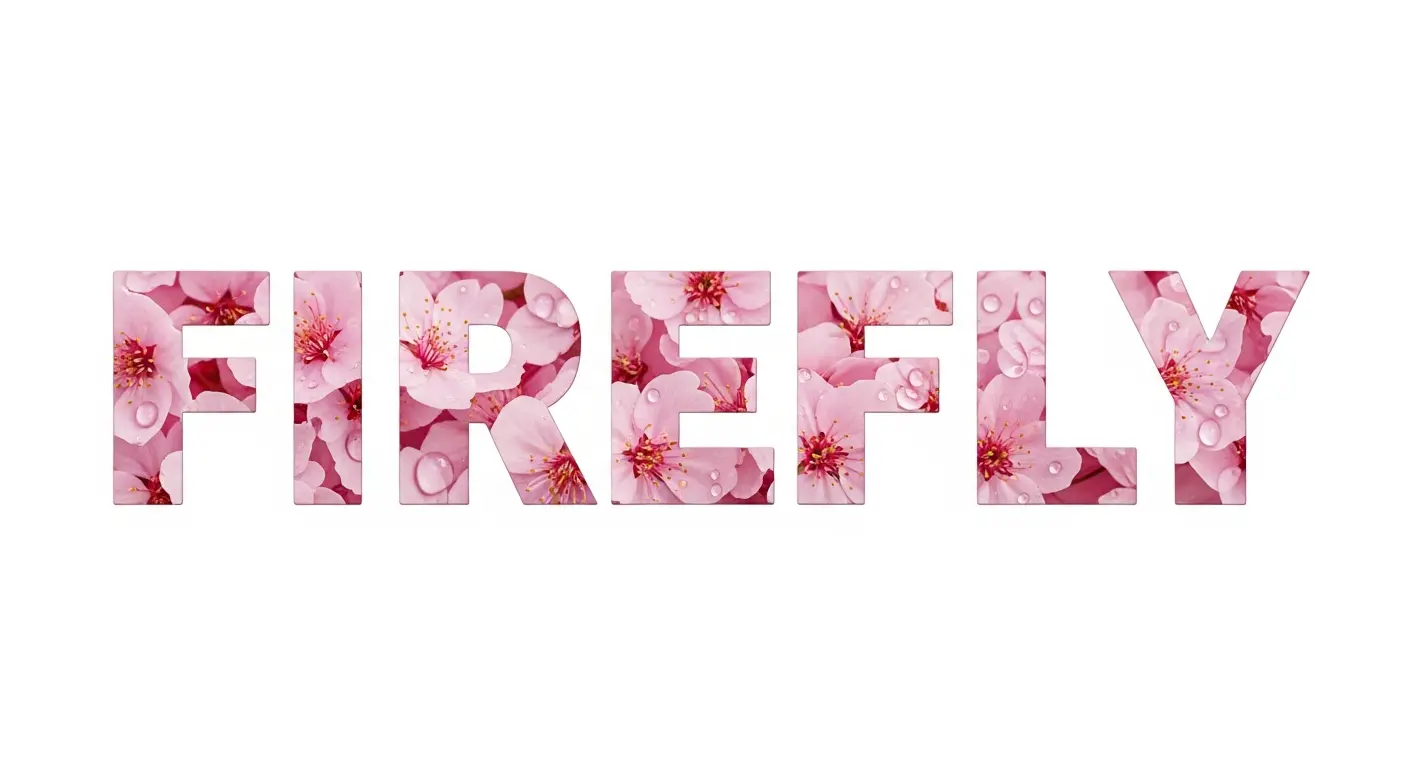
Adobe Firefly Text Effects transforms ordinary text into stunning visual designs using AI. Unlike standard typography tools, this feature applies textures, materials, and styles directly onto letterforms, creating eye-catching graphics for logos, thumbnails, social media posts, and marketing materials. This guide covers everything from basic usage to advanced techniques for professional results.
Text Effects works differently from Firefly’s image generation. Instead of creating images from scratch, it uses your typed characters as a scaffold and fills them with AI-generated textures based on your prompt. The result is stylized text that would take hours to create manually in Photoshop.
Getting Started with Text Effects
Access Text Effects through firefly.adobe.com or directly within Adobe Express. Both methods use the same AI engine, though Express offers additional design integration.
Step 1: Access the Tool
Navigate to the Firefly homepage and select “Text Effects” from the available modules. You need an Adobe ID to use the tool, with free accounts receiving 25 monthly generative credits.
Step 2: Enter Your Text
Type your text in the input field. Text Effects supports up to 20 characters on a single line. For best results, use uppercase letters as they provide more surface area for texture details. Avoid abbreviations since the AI interprets each character literally.
Step 3: Describe Your Effect
In the prompt field, describe the texture, material, or style you want applied to your text. Be specific and descriptive. Instead of “flowers,” try “pink cherry blossoms with soft petals and morning dew drops.”
Step 4: Generate and Refine
Click Generate to create four variations. Review each option, then regenerate or adjust settings until you achieve your desired look. For foundational Firefly knowledge, the Complete Adobe Firefly Guide for Beginners covers the platform comprehensively.
Text Effects Settings Explained
| Setting | Function | Options |
|---|---|---|
| Font | Base typography style | 12+ fonts including serif, sans-serif, decorative |
| Fit | How tightly effect conforms to letters | Tight, Medium, Loose |
| Text Color | Tint applied over generated texture | Color picker or presets |
| Background | Canvas behind text | Color picker or transparent |
Font Selection significantly impacts results. Thick, bold fonts like Impact or heavyweight sans-serifs display textures better than thin fonts. Script fonts work well for organic effects like vines or ribbons.
Text Effect Fit controls how closely the generated texture follows letterforms. Tight fit keeps textures strictly within letter boundaries, ideal for clean logos. Loose fit allows textures to extend beyond letters, creating organic, natural looks perfect for nature themes.
Prompt Formulas for Different Styles
Nature and Organic Effects
Floral Text Prompt: Pink roses with green leaves and tiny water droplets, garden fresh, morning light
Forest Theme Prompt: Thick green moss with tiny mushrooms and forest floor texture, damp woodland
Ocean Inspired Prompt: Blue ocean waves with white foam and bubbles, tropical water, sunlight reflections
Nature prompts pair beautifully with loose fit settings. The organic overflow creates realistic botanical effects that work for eco-friendly branding and wellness content.
Food and Culinary Effects
Cookie Text Prompt: Fresh baked chocolate chip cookies with golden brown edges, melted chocolate, bakery style
Fruit Theme Prompt: Sliced citrus fruits, oranges and lemons, juicy flesh with visible segments, fresh and vibrant
Candy Style Prompt: Colorful hard candy with glossy surface, rainbow swirls, sweet shop aesthetic
Food textures create excellent thumbnails for recipe content, restaurant branding, and food blogs. The photorealistic rendering makes text appetizing and engaging.
Metallic and Industrial Effects
Gold Luxury Prompt: Polished gold metal with reflective surface, luxury jewelry finish, elegant shine
Chrome Tech Prompt: Brushed chrome steel with industrial reflections, modern metallic, high-tech surface
Copper Vintage Prompt: Aged copper with green patina, antique metal texture, steampunk aesthetic
Metallic effects suit premium branding, tech content, and professional thumbnails. Use tight fit for clean corporate looks.
Fantasy and Creative Effects
Fire and Flames Prompt: Burning flames with orange and red fire, hot embers, dramatic lighting
Ice Crystal Prompt: Frozen ice crystals with blue tint, frost patterns, winter cold, transparent edges
Galaxy Space Prompt: Cosmic nebula with purple and blue swirls, stars and galaxies, deep space
Fantasy effects work excellently for gaming content, entertainment branding, and creative projects. For complete fantasy artwork beyond text, 20 Adobe Firefly Prompts for Fantasy Art provides detailed scene prompts.
Seasonal and Holiday Effects
Christmas Theme Prompt: Red and green Christmas ornaments with gold glitter, festive decorations, holiday sparkle
Halloween Style Prompt: Orange pumpkins with carved faces, spooky jack-o-lanterns, Halloween night
Spring Flowers Prompt: Pastel spring flowers with soft petals, Easter colors, fresh garden blooms
Seasonal text effects elevate holiday marketing, greeting cards, and themed social media content.
Professional Use Cases
YouTube Thumbnails
Text Effects creates attention-grabbing thumbnail titles. Generate your text with a transparent background, then import into your thumbnail design. Food channels benefit from ingredient-textured titles, while gaming channels can use fire, neon, or metallic effects.
Logo Brainstorming
While Text Effects outputs are raster images rather than vectors, they serve excellently for logo concept exploration. Generate multiple texture variations to visualize brand directions before commissioning final vector logos. For text-heavy logo work, Ideogram for text in images offers complementary capabilities.
Social Media Graphics
Instagram posts, Pinterest pins, and Facebook covers benefit from stylized text headers. The 20-character limit suits short, punchy headlines and brand names perfectly.
Print Materials
Posters, flyers, and invitations gain visual impact from textured headlines. Generate at maximum resolution for print applications, and use tight fit for cleaner reproduction.
Tips for Better Results
Be Specific with Materials Instead of “wood,” specify “weathered barn wood with grain patterns and rustic knots.” Detailed prompts yield detailed results.
Describe Lighting Adding lighting descriptions like “soft morning light,” “dramatic shadows,” or “golden hour glow” enhances realism significantly.
Specify Surface Qualities Include words like glossy, matte, rough, smooth, wet, or dusty to control surface appearance.
Use Color Descriptors Even with the color tint option, describing colors in your prompt creates more cohesive results. “Deep emerald green moss” outperforms “moss” alone.
Iterate and Experiment Generate multiple times with slight prompt variations. The AI interprets prompts differently each generation, sometimes producing unexpected but excellent results.
Combining Text Effects with Other Tools
Text Effects outputs integrate seamlessly with Adobe’s ecosystem. Export your styled text and bring it into Photoshop for compositing, Illustrator for layout work, or Premiere Pro for video titles. Adobe Express offers the most straightforward workflow, letting you generate effects and design complete graphics without switching applications.
For projects requiring both stylized text and AI-generated imagery, combine Text Effects outputs with Firefly’s image generation. Create a fantasy landscape, then overlay fire-textured title text for complete visual compositions. The Adobe Firefly vs Midjourney comparison explores when Firefly excels for these integrated workflows.
Download and Export Options
Generated text effects download as PNG files with transparency support. Enable transparent background before downloading if you plan to composite the text over other images. Firefly automatically attaches Content Credentials metadata, identifying the image as AI-generated for transparency compliance.
Each generation consumes one credit from your monthly allocation. Free accounts receive 25 credits, while paid Creative Cloud plans include substantially more. During promotional periods, Adobe occasionally offers unlimited generations for subscribers.
Common Mistakes to Avoid
Avoid single-word prompts like “fire” or “metal.” These produce generic results. Instead, build descriptive phrases that specify material, lighting, color, and surface quality.
Do not use special characters or numbers if you want optimal texture coverage. Letters provide the best scaffold for AI-generated textures.
Avoid extremely thin fonts for complex textures. The narrow strokes cannot display detailed materials effectively.
Related Resources:
- 15 Adobe Firefly Prompts for Portrait Photos
- 25 Ideogram Prompts for Logo Design
- 30 Ideogram Prompts for T-Shirt Designs
- How to Create Quote Posters with Ideogram
Frequently Asked Questions
How does Adobe Firefly Text Effects actually work?
Instead of generating an image from scratch, Text Effects uses your typed characters as a scaffold and fills them with AI-generated textures based on your prompt, producing stylized text that would otherwise take hours to create manually in Photoshop.
How many characters can I type into Text Effects?
Text Effects supports up to 20 characters on a single line. The guide recommends using uppercase letters, which provide more surface area for texture detail, and avoiding abbreviations since the AI interprets characters literally.
What’s the difference between Tight and Loose fit settings?
Tight fit keeps the generated texture strictly within the letter boundaries, ideal for clean logos, while Loose fit lets textures extend beyond the letters for a more organic, natural look suited to nature themes.
How many credits does each Text Effects generation cost?
Each generation consumes one credit from your monthly allocation. Free accounts receive 25 credits, while paid Creative Cloud plans include substantially more, and Adobe occasionally offers unlimited generations during promotions.
Can I use Text Effects output as a final logo?
Not directly. Text Effects outputs are raster images rather than vectors, so the guide recommends using them for logo concept exploration and visualizing brand directions before commissioning a final vector logo.
What’s a common mistake to avoid when writing Text Effects prompts?
Avoid single-word prompts like ‘fire’ or ‘metal’ since they produce generic results. The guide recommends building descriptive phrases specifying material, lighting, color, and surface quality instead.