
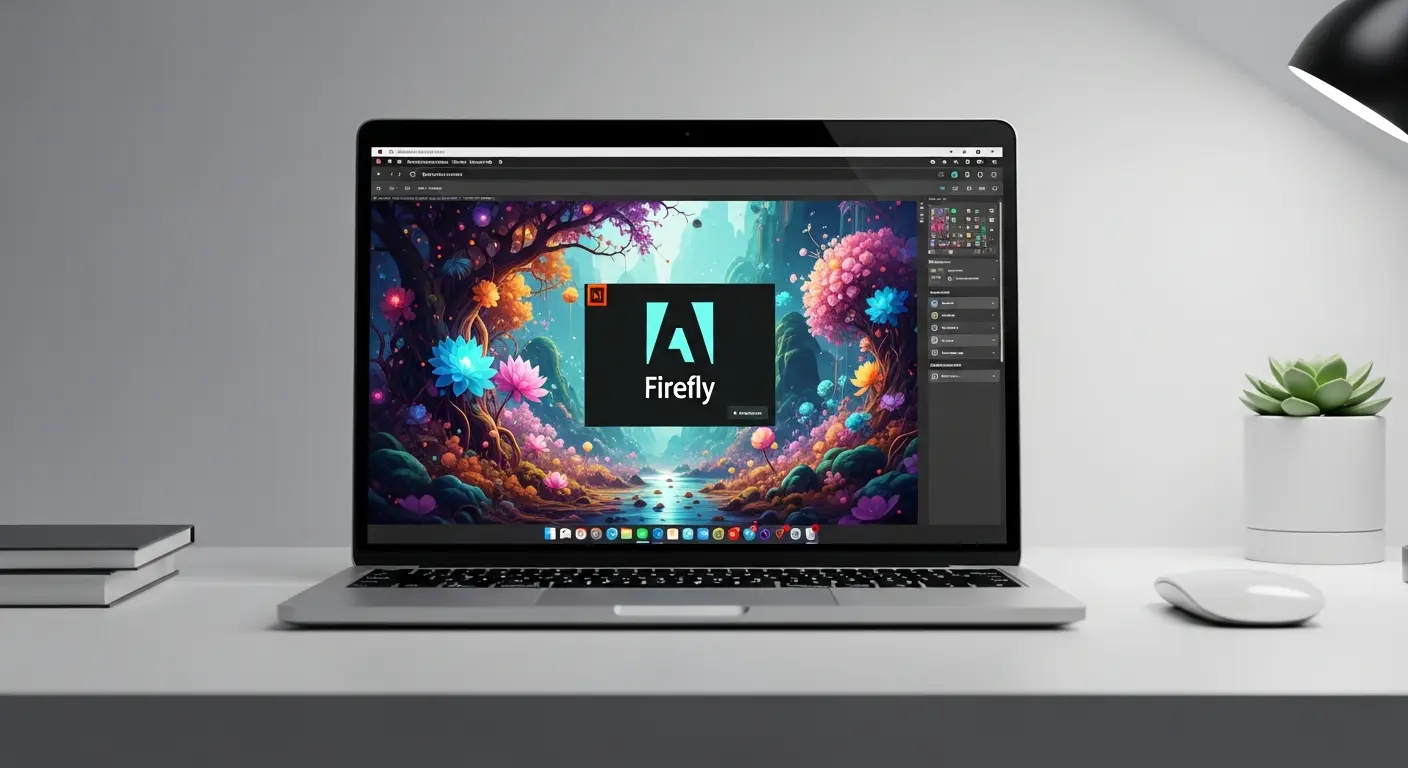
Adobe Firefly has transformed how creators approach AI image generation. Unlike other AI tools, Firefly stands out as the only commercially safe option trained exclusively on licensed content. This guide covers everything beginners need to know about using Adobe Firefly effectively.
What is Adobe Firefly
Adobe Firefly is a family of generative AI models designed for creative production. It powers text-to-image, text-to-video, and text-to-vector capabilities within Adobe’s ecosystem. The tool integrates directly with Creative Cloud applications including Photoshop, Illustrator, and Premiere Pro.
What makes Firefly unique is its training data. Adobe trained these models exclusively on licensed Adobe Stock images, Creative Commons content, and public domain material. This approach makes all generated content commercially safe for business use without copyright concerns.
The platform now supports over 100 languages for text prompt inputs, making it accessible to creators worldwide.
Adobe Firefly Models Explained
Firefly currently offers multiple AI models for different creative needs:
| Model | Best For | Output Quality |
|---|---|---|
| Image Model 4 | Rapid ideation, icons, simple illustrations | High quality, fast generation |
| Image Model 4 Ultra | Photorealistic portraits, complex scenes | Maximum detail and realism |
| Video Model | 5-second clips, b-roll, motion elements | Up to 1080p resolution |
| Vector Model | Logos, icons, patterns, editable graphics | Scalable vector output |
Image Model 4 handles approximately 90% of typical creative requirements quickly and efficiently. For projects requiring photorealistic human portraits or complex group shots, Image Model 4 Ultra delivers significantly better results.
If you want to compare Adobe Firefly vs Midjourney, the key difference lies in commercial safety and integration capabilities.
Key Features of Adobe Firefly
Text to Image Generate images by describing what you want in natural language. Start with a 4-5 word phrase and add details about lighting, angle, style, and mood. Firefly produces four unique options per generation.
Text to Video Create video clips up to 5 seconds long from text descriptions. Control camera angles, shot size, and movement. Choose from aerial, eye-level, high, low, or top-down perspectives. The Video Model supports 16:9, 9:16, and 1:1 aspect ratios.
Image to Video Transform static images into motion. Upload a reference image and Firefly animates it while preserving original textures and color gradients.
Text to Vector Generate editable vector graphics directly from text prompts. Perfect for logos, icons, and patterns that need to scale without quality loss. Explore 25 Ideogram prompts for logo design for complementary logo creation techniques.
Firefly Boards A collaborative workspace for moodboarding, storyboarding, and brainstorming. Teams can generate and organize visuals together in real-time.
Adobe Firefly Pricing Plans
Adobe offers several subscription tiers:
| Plan | Price | Credits | Key Benefits |
|---|---|---|---|
| Free | $0 | 25/month | Limited access, watermarked outputs |
| Standard | $9.99/month | 2,000 | Unlimited image and vector generation |
| Pro | $29.99/month | 7,000 | More video generations, priority processing |
| Premium | $199.99/month | 50,000 | Enterprise-scale content creation |
Creative Cloud Pro subscribers receive 4,000 monthly credits with unlimited access to standard generative features. Credits reset monthly and do not roll over.
How to Use Adobe Firefly
Step 1: Access the Platform Visit firefly.adobe.com and sign in with your Adobe ID. Free accounts can be created instantly.
Step 2: Select Your Tool Choose from Text to Image, Text to Video, Image to Video, Text to Vector, or Firefly Boards on the homepage.
Step 3: Write Your Prompt Enter a detailed description. Include specific elements like subject, style, lighting, color palette, and composition. More descriptive prompts yield better results.
Step 4: Adjust Settings Use the control panel to modify aspect ratio, style presets, content type, and visual intensity. For Adobe Firefly portrait prompts, adjust lighting and camera angle settings for professional results.
Step 5: Generate and Refine Click Generate to create four variations. Select your preferred output and use editing tools to refine further. Regenerate with modified prompts until satisfied.
Partner Models in Adobe Firefly
Adobe now integrates third-party AI models directly into Firefly:
- Google Imagen 3
- OpenAI GPT image generation
- Flux models
- Google Veo for video
This flexibility allows creators to choose the best model for specific projects while working within a single platform. Compare this approach with standalone tools in our Flux vs Midjourney vs DALL-E 3 comparison.
Adobe Firefly Best Practices
For Better Image Results:
- Use 5 or more words in your prompt
- Specify lighting conditions explicitly
- Include camera angle preferences
- Mention style references when relevant
- Add mood descriptors for emotional context
For Video Generation:
- Define shot size clearly (close-up, medium, wide)
- Specify camera movement type
- Keep concepts simple for 5-second clips
- Use start and end frame references for control
For Commercial Projects:
- Use only Adobe’s native models for guaranteed IP safety
- Download with Content Credentials enabled
- Keep generation history for reference
When creating Adobe Firefly fantasy art, combine detailed environment descriptions with specific fantasy elements for immersive results.
Adobe Firefly vs Other AI Tools
Firefly’s primary advantage is commercial safety. While tools like Midjourney or Flux AI may produce stunning visuals, questions about training data origins create legal uncertainties for commercial use.
Additional Firefly advantages include:
- Direct integration with Photoshop, Illustrator, and Premiere Pro
- Content Credentials for transparency
- Enterprise-grade governance features
- Custom model training for brand consistency
For text-heavy designs, consider combining Firefly with Ideogram, which specializes in accurate text rendering within images.
Who Should Use Adobe Firefly
Firefly works best for:
- Marketing teams needing commercially safe content
- Designers already using Creative Cloud applications
- Agencies requiring brand-consistent outputs
- Content creators producing high-volume visuals
- Businesses concerned about copyright compliance
The platform also supports Adobe Firefly text effects for typography-focused projects.
Getting Started Today
Adobe Firefly offers the most straightforward path to commercially safe AI content creation. Begin with the free tier to explore capabilities, then upgrade based on your production needs. The integration with existing Adobe tools means minimal workflow disruption for current Creative Cloud users.
Whether you need static images, motion graphics, or vector designs, Firefly provides professional-grade AI generation with legal peace of mind that other platforms cannot guarantee.
Related Resources:
- How to use Flux for free
- 25 Flux prompts for photorealistic photos
- How to create quote posters with Ideogram
Frequently Asked Questions
What makes Adobe Firefly different from other AI image generators?
Firefly is trained exclusively on licensed Adobe Stock images, Creative Commons content, and public domain material, making all generated content commercially safe without copyright concerns, unlike tools with disputed training data.
What are Adobe Firefly’s pricing tiers?
Firefly offers a Free plan with 25 credits per month, Standard at $9.99/month for 2,000 credits, Pro at $29.99/month for 7,000 credits, and Premium at $199.99/month for 50,000 credits. Creative Cloud Pro subscribers also get 4,000 monthly credits included.
What can Adobe Firefly actually generate besides images?
Beyond text-to-image, Firefly offers text-to-video (up to 5-second clips in 16:9, 9:16, or 1:1), image-to-video animation, text-to-vector for editable logos and icons, and Firefly Boards, a collaborative moodboarding workspace.
Which Firefly model should I use for realistic human portraits?
Image Model 4 handles about 90% of typical creative requirements quickly, but for photorealistic human portraits or complex group shots, Image Model 4 Ultra delivers significantly better results.
Can I use third-party AI models within Adobe Firefly?
Yes, Firefly now integrates partner models including Google Imagen 3, OpenAI’s GPT image generation, Flux models, and Google Veo for video, letting creators pick the best model for a project within one platform.
Who is Adobe Firefly best suited for?
The guide recommends Firefly for marketing teams needing commercially safe content, designers already using Creative Cloud apps, agencies requiring brand-consistent outputs, high-volume content creators, and businesses concerned about copyright compliance.